
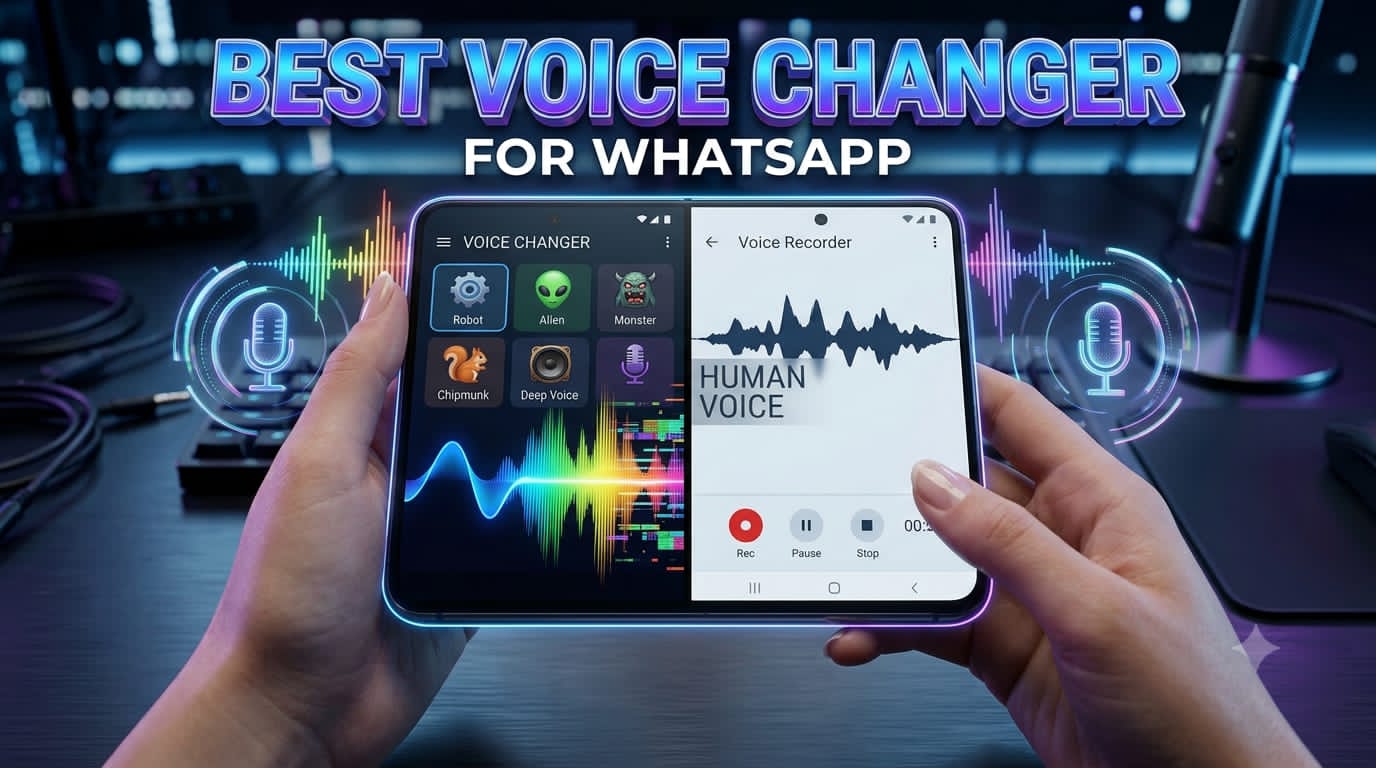
Best Voice Changer for WhatsApp

Sending a voice note on WhatsApp is easy — but sending one that sounds like a robot, a chipmunk, or a deep-voiced villain? Now that’s fun! Voice changer apps for WhatsApp are surprisingly simple to use, and the results can be genuinely entertaining.
Whether you want to prank your group chat or simply add some personality to your messages, a Voice Changer for WhatsApp can make your voice notes much more interesting.
This guide covers the best voice changer apps for WhatsApp, how they work, and what to look for before downloading one. It also answers a common question: can you actually change your voice during a live WhatsApp call?
What Is a WhatsApp Voice Changer?
A Voice Changer for WhatsApp is an app that lets you modify your voice before sending a WhatsApp voice note. You record your audio inside the voice changer app, apply an effect such as helium, echo, robot, or alien distortion, and then share the modified clip to WhatsApp.
These apps are not built directly into WhatsApp. Instead, they work alongside WhatsApp as recording and audio-editing tools that allow you to export the modified recording.
How Do Voice Changer Apps Work?
Voice changer apps use audio processing to modify characteristics such as pitch, tone, and reverb. The basic process is simple:
- Record your voice inside the app.
- Choose and apply your preferred voice effect.
- Save or export the modified audio file.
- Share the audio file to WhatsApp.
Most apps are designed for beginners, so you generally don’t need any technical knowledge. Record your voice, choose an effect, save the result, and share it.
Best Voice Changer Apps for WhatsApp
1. Voice Changer with Effects
Voice Changer with Effects is a popular option for Android users who want a variety of fun voice effects. Available effects can include robot, cave, chipmunk, and other entertaining sounds. Its simple interface makes it suitable for beginners.
2. REC: Voice Changer & Recorder
REC combines voice recording with different effects and lets users preview how their modified voice sounds before sharing it. It’s useful for anyone who wants to experiment with different filters.
3. Funcall – Voice Changer & Call
Funcall focuses on voice modification and provides various effects for users who want to experiment with altered audio. Features and availability can vary by device and app version.
4. Super Voice Editor
Super Voice Editor combines recording, editing, and voice effects in one application. It’s a useful choice for users who want more control over their audio before sending it through WhatsApp.
Comparison Table
| App | Real-Time Effects | WhatsApp Sharing | Free Version | Best For |
|---|---|---|---|---|
| Voice Changer with Effects | Yes | Yes | Yes | Beginners & fun effects |
| REC: Voice Changer | Yes | Yes | Yes | Preview before sending |
| Funcall | Partial | Yes | Yes | Casual use |
| Super Voice Editor | No | Yes | Yes | Editing & control |
Voice Changer for WhatsApp Voice Notes
Using a Voice Changer for WhatsApp with voice notes is one of the simplest ways to share modified audio. You create the recording inside the voice changer app, apply an effect, save the file, and then send it through WhatsApp.
- Open your chosen voice changer app.
- Record your voice inside the app.
- Choose your preferred voice effect.
- Preview the modified recording.
- Save or export the audio file to your phone.
- Open WhatsApp and select the conversation where you want to send it.
- Use the attachment option to select and send the saved audio file.
This approach is generally more dependable than trying to modify your voice during a live WhatsApp call because the audio is processed before you send it.
Can You Change Your Voice During WhatsApp Calls?
This is one of the most common questions about a Voice Changer for WhatsApp. Most standard voice changer apps do not reliably support live voice changing during WhatsApp calls.
WhatsApp handles call audio through its own communication system, so third-party apps generally cannot simply intercept and modify the call audio in real time.
Some specialized applications may claim to provide live voice-changing features, but their performance can vary depending on your Android version, phone model, permissions, and other technical limitations. These features should not be treated as guaranteed WhatsApp functionality.
For reliable results, modifying a recorded voice note is the better option. You can apply the effect, listen to the result, and then share the finished audio through WhatsApp.
How to Use a Voice Changer With WhatsApp
Follow these steps if you’re using a voice changer app for the first time:
- Download a trusted voice changer app from the Google Play Store.
- Open the app and allow microphone access when requested.
- Record your message using the app’s recorder.
- Select a voice effect from the available options.
- Preview the modified audio to make sure it sounds the way you want.
- Export or save the audio file to your device.
- Open WhatsApp and select a chat.
- Attach the saved audio file and send it.
Features to Look For in a Voice Changer App
- Variety of Effects: Look for different pitch, robot, echo, alien, and other voice effects.
- Easy WhatsApp Sharing: Direct or simple export options can save time.
- Real-Time Preview: Lets you hear how the effect sounds before saving the recording.
- Simple Interface: A clean design makes recording and editing easier.
- Good User Reviews: Check recent Play Store reviews rather than relying only on the overall rating.
- Privacy-Friendly Permissions: The app should not request unrelated access to sensitive information.
A Note on Android Permissions and Privacy
A voice changer normally needs microphone permission because it has to record your voice. That permission makes sense for the app’s main purpose.
Be more careful if an app requests access to contacts, location, messages, or other sensitive information without clearly explaining why it needs that access.
For better security, download apps from the official Google Play Store, review their permissions, and check the developer’s information and privacy policy before using them.
Common Problems and Solutions
Audio File Won’t Send on WhatsApp
Solution: Check the format of the exported audio file. If the voice changer offers different export options, choose a commonly supported audio format and try sending it again.
Voice Effect Sounds Distorted or Choppy
Solution: Record your voice in a quiet environment and keep the microphone at a reasonable distance. Background noise can affect the quality of the modified recording.
The App Crashes After Recording
Solution: Close unnecessary background apps and restart the voice changer. You can also clear its cache from your Android settings. If the problem continues, update or reinstall the app from the Google Play Store.
WhatsApp Shows an Error When Attaching the Audio
Solution: Check the audio file’s format and size. If necessary, export the recording again using another supported format or a lower quality setting.
WhatsApp Voice Changer vs Normal Voice Recorder
| Feature | Voice Changer App | Normal Voice Recorder |
|---|---|---|
| Sound Effects | Yes | No |
| Pitch Adjustment | Yes | Usually No |
| WhatsApp Sharing | Usually Yes | Yes |
| Audio Quality | Good | Usually Excellent |
| Fun Factor | Very High | Low |
A normal voice recorder is better when you simply want clean and natural audio. A Voice Changer for WhatsApp is more suitable when you want to add effects, experiment with different voices, or make your messages more entertaining.
Frequently Asked Questions
Is it safe to use a voice changer app on Android?
Generally, yes, if you download the app from the Google Play Store and carefully review its permissions. Avoid apps that request unnecessary access to personal information.
Do voice changer apps work with WhatsApp on iPhone?
Availability and functionality vary on iOS. Apple’s system has different audio and background-app restrictions, so check the individual app’s current App Store listing before downloading.
Will my contacts know I used a voice changer?
WhatsApp does not normally add a label indicating that an audio file was modified with a voice changer. However, the recipient can obviously recognize the effect from the sound itself.
Can I use a voice changer for WhatsApp group chats?
Yes. Once you have exported the modified audio, you can share it in a WhatsApp group in the same way as you would share an audio file in an individual chat.
Do voice changer apps work offline?
Many apps can record and process audio directly on the phone without an internet connection. However, you’ll need an internet connection when you want to send the finished recording through WhatsApp.
The Best Voice Changer for WhatsApp Is Just a Download Away
Adding a voice changer to your WhatsApp toolkit can make ordinary voice messages much more entertaining. Whether you want a funny robot effect, a high-pitched voice, or another creative filter, these apps give you an easy way to customize your recordings before sharing them.
For the most reliable experience, focus on modifying voice notes rather than trying to change your voice during a live WhatsApp call. Record your message, apply an effect, preview the result, and then share the finished audio through WhatsApp.
Always download voice changer apps from trusted sources such as the Google Play Store, review their permissions carefully, and avoid applications that request unnecessary access to your personal information.
With the right Voice Changer for WhatsApp, you can add a little creativity to your conversations while keeping the process simple and safe.