
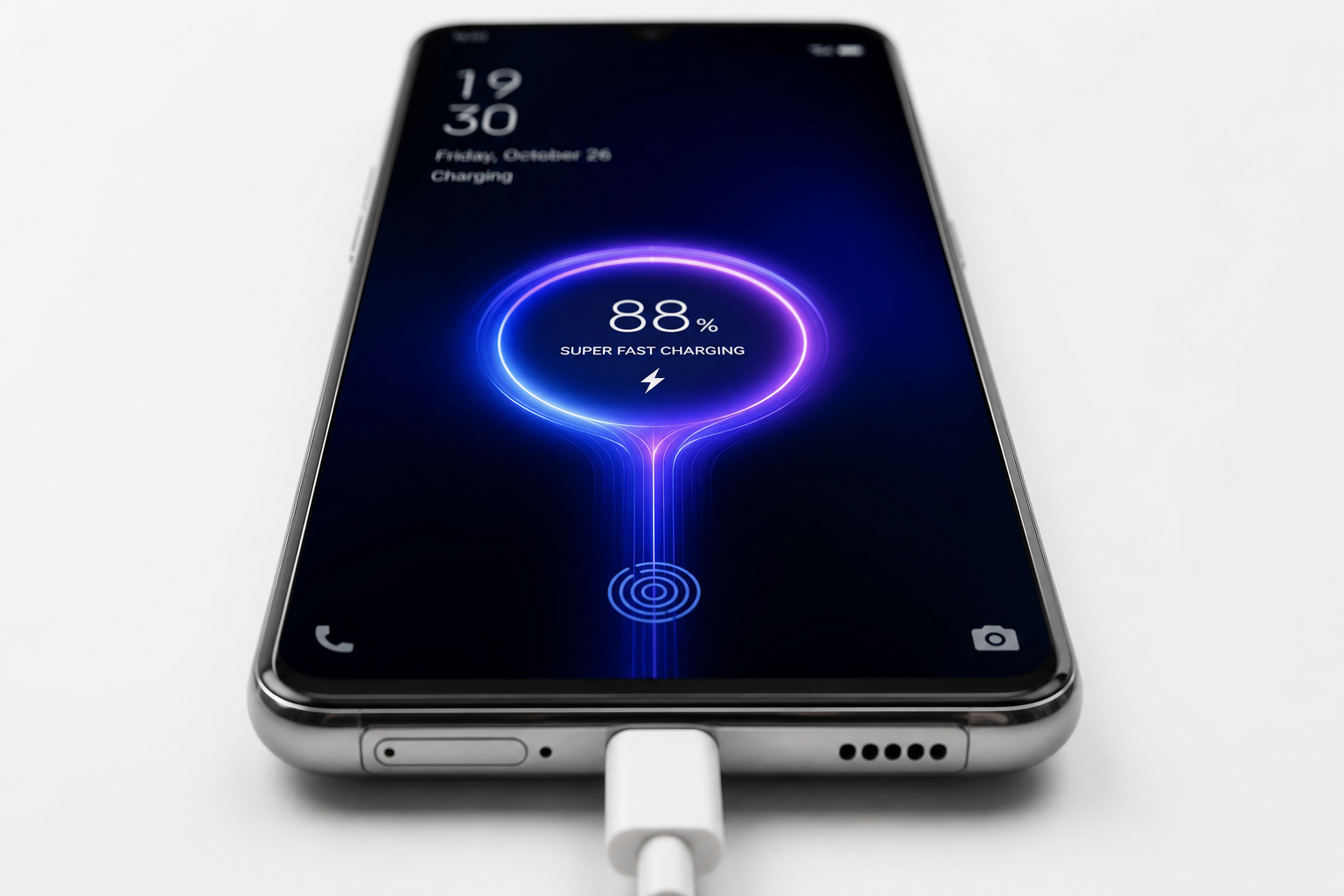
Fast Charging Setting: Everything You Need to Know
Your phone is at 10%, you have 20 minutes before you leave the house, and you’re staring at a charging cable wondering if it’ll be enough. Sound familiar? That’s exactly where fast charging makes a real difference—and knowing how to use it properly could change how you power up every single day.
This guide covers everything you need to know about the fast charging setting: what it is, how it works, how to enable it on different Android phones, why it sometimes stops working, and whether it actually hurts your battery in the long run. No jargon, no fluff—just clear, practical answers.
What Is Fast Charging Setting?
Fast charging is a feature available on most modern smartphones that allows the device to charge significantly faster than standard charging. The fast charging setting on your phone controls whether this feature is active or not.
When fast charging is enabled, your phone and charger communicate to deliver higher voltage or current to the battery. This cuts charging time dramatically—sometimes getting you from 0% to 50% in under 30 minutes.
Different brands use different fast charging technologies:
- Qualcomm Quick Charge – Used in many Android phones with Snapdragon processors.
- USB Power Delivery (USB-PD) – A universal standard supported across many devices.
- Samsung Adaptive Fast Charging – Samsung’s proprietary charging system.
- Xiaomi HyperCharge / Turbo Charging – Found in Xiaomi and Redmi devices.
- VOOC / SuperVOOC – Oppo and Realme’s fast charging technology.
- Warp Charge / SUPERVOOC – OnePlus’s version of fast charging.
Each technology works a little differently, but the goal is always the same: charge your phone faster.
How Fast Charging Work
At its core, fast charging works by increasing the amount of power delivered to your battery. Power is measured in watts (W), and while a standard charger delivers around 5W, modern fast chargers can provide anywhere from 18W to 240W.
Your phone contains a built-in power management chip that communicates with the charger to determine the fastest and safest charging speed.
If you’re also wondering whether a 4G to 5G Converter App can really upgrade your phone to 5G, read our detailed guide to understand the facts before changing your device settings.
There are two main approaches:
- High-Voltage Charging – Increases voltage to deliver more power. Used by Qualcomm Quick Charge and USB-PD.
- High-Current Charging – Keeps voltage lower while increasing current. Used by VOOC, SuperVOOC, Warp Charge, and similar technologies.
How to Enable Fast Charging Setting on Android
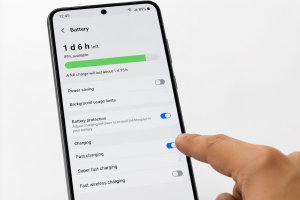
- Open Settings.
- Tap Battery (or Battery & Device Care).
- Select Charging or Charging Settings.
- Enable Fast Charging, Adaptive Fast Charging, or Super Fast Charging.
If you don’t see this option, your phone may not support fast charging or the feature may already be enabled automatically.
For official charging and battery guidance, visit Android Help.
How to Enable Fast Charging on Samsung Phones
- Go to Settings.
- Tap Battery and Device Care.
- Select Battery.
- Tap More Battery Settings.
- Turn on Fast Charging or Super Fast Charging.
Samsung devices that support 45W charging will also display the Super Fast Charging 2.0 option.
For model-specific charging information, visit Samsung Support.
How to Enable Fast Charging on Xiaomi, Redmi, Vivo, Oppo, Realme, OnePlus, Motorola, and Google Pixel
Xiaomi & Redmi
- Open Settings.
- Go to Battery.
- Enable Turbo Charging or Fast Charging.
Vivo
- Open Settings.
- Select Battery.
- Enable Flash Charge or Fast Charge.
Oppo & Realme
- Open Settings.
- Tap Battery.
- Enable VOOC Flash Charge or SuperVOOC.
OnePlus
- Open Settings.
- Go to Battery.
- Enable Warp Charge or SUPERVOOC.
Motorola
- Open Settings.
- Select Battery.
- Enable TurboPower.
Google Pixel
Google Pixel phones automatically enable fast charging when a compatible USB-PD charger is connected. There is no manual toggle.
Why Fast Charging Is Not Working
- Wrong charger or cable.
- Fast charging setting is disabled.
- Dirty or damaged charging port.
- Phone overheating.
- Too many background apps.
- Battery management apps interfering.
- Software bugs.
How to Fix Fast Charging Problems
- Use the original charger and cable.
- Enable the fast charging setting.
- Clean the charging port.
- Restart your phone.
- Turn on Airplane Mode while charging.
- Update your phone software.
- Factory reset as a last resort.
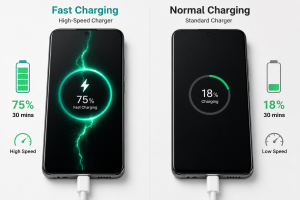
Fast Charging vs Normal Charging
| Feature | Fast Charging | Normal Charging |
|---|---|---|
| Charging Speed | 30 Minutes – 1 Hour | 2–3 Hours |
| Power Output | 18W–240W | 5W |
| Heat Generated | Moderate to High | Low |
| Battery Wear | Slightly Faster Long-Term | Slower Long-Term |
| Best For | Quick Charging | Overnight Charging |
| Special Charger Required | Yes | No |
Does Fast Charging Damage Battery Health?
Fast charging generates more heat than standard charging, but modern smartphones include thermal protection systems that automatically reduce charging speed when temperatures become too high.
Occasional fast charging will not significantly reduce battery life. Using it every day for years may cause slightly faster battery wear, but the difference is relatively small for most users.
Best Tips to Charge Your Phone Faster
- Enable Airplane Mode.
- Turn off the screen.
- Close background apps.
- Charge in a cool environment.
- Use the original charger.
- Charge between 20% and 80%.
- Use wired charging instead of wireless charging.
Common Fast Charging Myths
- Myth: Any fast charger works with every phone.
Fact: The charger must support the same charging protocol. - Myth: Fast charging destroys battery life.
Fact: Modern phones include battery protection features. - Myth: Charging overnight always damages the battery.
Fact: Modern phones automatically reduce charging speed when the battery is full. - Myth: Higher wattage always means faster charging.
Fact: Compatibility matters more than wattage. - Myth: You should never use fast charging.
Fact: Fast charging is designed for everyday use.
Frequently Asked Questions (FAQ)
What is a fast charging Feature on Android?
It is a battery setting that allows your phone to accept higher power from a compatible fast charger.
Does enabling fast charging drain battery faster?
No. It only affects charging speed, not battery backup.
Can I use fast charging every day?
Yes. Modern smartphones are designed for daily fast charging.
Why does my phone say “Charging Slowly”?
This usually means you’re using an incompatible charger or cable.
Is fast charging safe while sleeping?
Yes, if you use a certified charger and keep the phone on a well-ventilated surface.
Does fast charging work with a power bank?
Yes, provided the power bank supports the same fast charging protocol as your phone.
Want to get even more out of your Android phone? Check out our WhatsApp Hidden Features guide to discover useful tricks that most users still don’t know.
Final Verdict
The fast charging setting is one of the most useful smartphone features available today. Knowing how to enable it, using the correct charger, and following proper charging habits will help you charge your phone safely and efficiently.
For the best results, always use a compatible fast charger, keep your charging port clean, avoid excessive heat, and enable fast charging whenever you need quick power.