
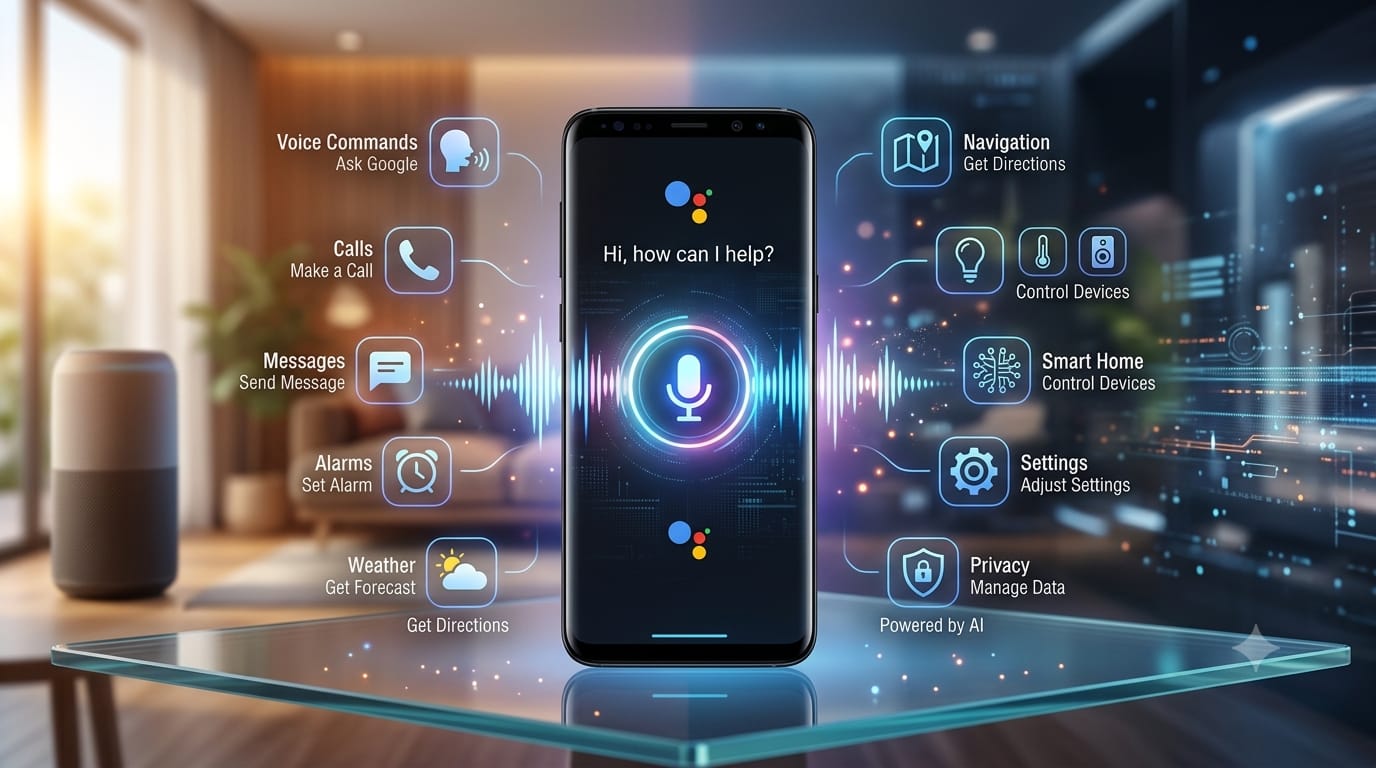
Google Assistant Explained: Commands, Settings, and the Move to Gemini
Quick answer: Google Assistant is Google’s voice-activated helper that has been used on Android phones, tablets, smart speakers, and other devices. It can handle tasks such as making calls, sending texts, setting alarms, checking the weather, controlling compatible smart home devices, and answering questions with voice commands. Google is now transitioning the mobile Assistant experience to Gemini, so Android users may see Gemini instead of classic Google Assistant as the change rolls out.
If you’ve noticed your phone responding differently than it used to, you’re not imagining it. Google Assistant has been the familiar voice behind Android devices for years, helping with everything from morning alarms to hands-free directions. But Google’s assistant experience is changing, with Gemini becoming the newer AI-powered assistant on mobile devices.
This guide explains what Google Assistant is, what it can do, useful voice commands, important settings, privacy options, common problems, and what the move from Google Assistant to Gemini means for Android users.
What Is Google Assistant and How Does It Work?
Google Assistant is a voice-activated digital assistant developed by Google. It was designed to understand spoken requests and help users complete everyday tasks without having to type or navigate through multiple menus.
Depending on the device and available features, Google Assistant could respond to a wake phrase such as Hey Google or a touch or button shortcut. It could then use speech recognition and natural language processing to understand what you were asking and provide an answer or perform a supported action.
Google Assistant could connect with your Google account, phone apps, contacts, calendar, and compatible smart home devices. This allowed users to perform tasks such as sending messages, checking appointments, getting directions, or controlling connected lights with voice commands.
The exact capabilities could vary depending on:
- Your Android version
- Your device manufacturer
- Your region and language
- The apps installed on your device
- Your Google account
- Which Google assistant experience is available on your device
What Can Google Assistant Do?
Google Assistant was designed to make everyday tasks faster and more convenient. Common uses included:
- Making phone calls
- Sending and reading text messages
- Setting alarms and timers
- Creating reminders
- Checking the weather
- Answering general questions
- Searching for information
- Getting directions and navigation help
- Playing music and other media
- Opening supported apps
- Controlling compatible smart home devices
- Managing certain phone settings and tasks
Not every feature worked on every device, and some capabilities depended on the apps and services connected to Google Assistant.
Google Assistant Voice Commands You Can Try
Voice commands were one of the main reasons people used Google Assistant. Here are examples of common commands that illustrate what the assistant could do.
Calls and Contacts
- Hey Google, call Mom.
- Hey Google, call the last number I dialed.
- Hey Google, call the nearest pharmacy.
Text Messages
- Hey Google, send a text to Sarah.
- Hey Google, read my latest message.
Alarms and Timers
- Hey Google, set an alarm for 7 AM.
- Hey Google, set a timer for 10 minutes.
Reminders and Calendar
- Hey Google, remind me to call the dentist tomorrow at noon.
- Hey Google, what’s on my calendar today?
Weather
- Hey Google, what’s the weather today?
- Hey Google, will it rain this weekend?
Search and General Questions
- Hey Google, how tall is the Eiffel Tower?
- Hey Google, what’s the capital of Japan?
Navigation and Directions
- Hey Google, navigate to the nearest gas station.
- Hey Google, how long will it take to get home?
Music and Media
- Hey Google, play my favorite playlist.
- Hey Google, pause the music.
Smart Home
- Hey Google, turn off the living room lights.
- Hey Google, set the thermostat to 70 degrees.
These commands are useful examples of the type of hands-free tasks Google’s assistant experience has supported. On current Android devices, some of these requests may now be handled by Gemini instead of classic Google Assistant.

How to Use Google Assistant on Android
The way Google’s assistant works on Android has changed over time. Android phones also use different interfaces depending on the manufacturer and software version.
Historically, users could access Google Assistant through voice activation, a home or power-button shortcut, or a screen gesture. Today, many Android users are being transitioned from classic Google Assistant to Gemini, so the assistant that opens on your phone may be different from what you used previously.
If you want to find out which assistant is currently active on your phone, check your device’s default digital assistant settings or open the Gemini app if it is installed.
How to Activate the Google Assistant Experience
On supported devices, Google’s assistant experience can be activated using voice or touch. Depending on your device, available methods may include:
- Saying Hey Google when voice activation is enabled
- Pressing and holding a configured power or side button
- Using a supported screen gesture
- Opening the Gemini app directly
On current Android devices, these activation methods may open Gemini because Google is transitioning the mobile Assistant experience to Gemini.
Google Assistant Settings You Should Know
Google Assistant settings have allowed users to customize how the assistant responds and interacts with their device. Depending on your device and current Google assistant experience, available settings may include:
- Voice and language preferences
- Voice activation
- Voice Match
- Personal results
- Assistant notifications
- Connected apps and services
- Privacy and activity controls
Settings and menu names can change as Google updates its assistant products, so your phone may not show exactly the same options described in older guides.
Voice, Language, and Personalization
Google’s assistant experience can support different languages and personalization options depending on your device and account. Users may be able to change language preferences, configure voice-related options, and control whether personal information such as calendar or contact data can be used for certain features.
Google Assistant Privacy and Activity Controls
Privacy is an important consideration when using any voice assistant. Google provides account and device settings that can help users manage how assistant-related information is handled.
- Microphone permissions: Review which apps have microphone access on your Android device.
- Google Account activity: Review available activity controls associated with your Google account.
- Voice and audio activity: Depending on your settings and Google’s current options, you may be able to review or manage voice-related activity.
- Personal information: Review which connected services can access information such as contacts or calendar data.
- Activity deletion: Use the privacy controls available in your Google Account to review or delete supported activity.
Google’s privacy controls can change over time, so it is a good idea to check the current settings in your Google Account rather than relying only on an older guide.
Why Is Google Moving From Assistant to Gemini?
Google is transitioning the mobile Assistant experience from classic Google Assistant to Gemini, its newer AI-powered assistant. Google began removing access to Google Assistant on mobile devices starting September 3, 2026, and the rollout may take several weeks to reach everyone.
This change affects the assistant experience on mobile devices and certain accessories paired with those devices. Depending on the device and rollout, users may see Gemini become their primary assistant instead of classic Google Assistant.
Gemini is designed around a more conversational and generative AI experience. Instead of focusing mainly on short, predefined tasks, Gemini can handle more natural conversations, help with writing, work with connected apps, and respond to more complex requests.
However, the transition does not mean that Google Assistant has disappeared from every Google device. Google says that Google Home and Nest smart speakers and displays are not affected by this particular mobile transition. Cars with Google built-in are also treated differently from Android Auto experiences projected from a mobile device.
What Happened to Google Assistant on Android?
Google Assistant is being phased out as the primary assistant experience on mobile Android devices. The transition began on September 3, 2026, and Google says the process may take a few weeks to reach everyone.
During the transition, some devices may still show classic Google Assistant while others may already use Gemini. Once the transition reaches a particular mobile device, Gemini becomes the newer assistant experience and classic Google Assistant may no longer be available there.
This is why two Android phones can appear to behave differently even when they are running similar versions of Android.
Google Assistant vs Google Gemini
| Feature | Google Assistant | Google Gemini |
|---|---|---|
| Main purpose | Voice-based task assistance | AI-powered conversational assistance |
| Voice interaction | Yes | Yes |
| Conversational ability | Primarily focused on direct commands | More conversational and multi-step |
| Information and search | Answers and search-related help | Generative answers and connected Google capabilities |
| Generative AI | Limited compared with Gemini | Core part of the experience |
| Calls and messages | Supported on compatible devices | Can use connected Phone and Messages capabilities on supported Android devices |
| Smart home | Widely used for compatible smart home controls | Capabilities are evolving and vary by setup |
| Current Android status | Being phased out on mobile devices | Becoming the newer mobile assistant experience |
In simple terms, classic Google Assistant was mainly built around executing everyday commands, while Gemini is designed as a broader conversational AI assistant. The two experiences overlap in areas such as calls, messages, reminders, and other tasks, but Gemini is designed to handle more open-ended conversations and generative requests.
Google’s current Gemini documentation also confirms that Gemini can use connected Android capabilities for tasks such as making phone calls and sending messages. 1

Google Assistant vs Google Search
| Feature | Google Assistant | Google Search |
|---|---|---|
| Main purpose | Voice-based assistance and task completion | Finding information and websites |
| Voice interaction | Core part of the experience | Available through voice search |
| Web search | Can provide information and search-related answers | Primary purpose |
| Hands-free tasks | Designed for supported tasks | Not its primary purpose |
| Calls and messages | Supported through compatible device features | Not its primary purpose |
| Everyday phone actions | Designed to help with supported actions | Primarily focused on information |
Google Search is primarily designed to help you find information across the web, while Google’s assistant experience is designed to let you interact with your device and connected services using natural language and voice.
Google Assistant Not Working: Common Problems and Fixes
If Google’s assistant is not responding as expected, the cause may be a setting, permission, software update, or the transition to Gemini.
Google Assistant Not Responding
Check your internet connection and review microphone permissions for the Google or Gemini app. Also check whether your device has already transitioned to Gemini.
Hey Google Not Working
Check whether “Hey Google” and Voice Match are enabled for the assistant experience currently active on your device. If Gemini is your assistant, check the Gemini settings for hands-free activation.
Microphone Problems
Test the microphone with another app to make sure the hardware is working. Then check microphone permissions under your Android app settings.
Voice Recognition Issues
Try speaking in a quieter environment and check your language settings. If Voice Match is available, you can also review or retrain the voice model.
Assistant or Gemini Not Opening
Restart your phone and check for pending Google app, Gemini, or Android system updates. You can also check which app is selected as your default digital assistant.
Wrong Language Detected
Review the language settings for your current assistant. The exact menu can vary depending on your phone and the assistant experience you are using.
Activation Problems
Check your phone’s gesture, power-button, or side-button settings. Android manufacturers can use different controls for activating a digital assistant.
Features Disappearing After an Update
Google regularly changes and updates its assistant products. If a feature has disappeared, check whether your device has transitioned from classic Google Assistant to Gemini and review Google’s current support information.
Gemini Appearing Instead of Google Assistant
If Gemini appears when you try to use Google Assistant, this may be part of Google’s mobile transition rather than a problem with your phone. Google began removing classic Google Assistant from mobile devices on September 3, 2026, and the rollout may take several weeks.
Smart Home Commands Not Working
Check that your compatible smart home devices are properly connected to your Google Home setup and are online. Smart home availability can vary depending on the device, service, and current Google assistant experience.
Frequently Asked Questions
What is Google Assistant?
Google Assistant is Google’s voice-activated digital assistant that was designed to help users complete tasks such as making calls, sending messages, setting alarms, checking information, and controlling compatible smart home devices.
What can Google Assistant do?
Google Assistant has supported tasks such as calls, text messages, alarms, reminders, weather information, directions, media playback, questions, and smart home controls. Exact capabilities depend on the device, apps, account, and available assistant experience.
Is Google Assistant free?
Google Assistant has been available as part of supported Google products and devices without a separate subscription for its core assistant functionality. Some connected services or features may have their own requirements.
How do I activate Google Assistant?
On supported devices, Google Assistant could be activated with “Hey Google” or a touch or button shortcut. On current Android devices, these methods may open Gemini because Google is transitioning the mobile assistant experience.
Why is Google Assistant being replaced by Gemini?
Google is transitioning its mobile assistant experience to Gemini, which is designed to provide more conversational and generative AI capabilities while also supporting many everyday assistant tasks.
Is Google Gemini the same as Google Assistant?
No. Gemini and classic Google Assistant are different assistant experiences. Gemini is Google’s newer AI-powered assistant, while Google Assistant was primarily designed around voice commands and everyday task execution.
Can Google Assistant make calls and send texts?
Yes, Google Assistant supported calling and messaging on compatible devices. On current Android devices using Gemini, Google’s official documentation also supports phone calls and text messaging through connected device apps. 2
Is Google Assistant gone from Android?
Google is discontinuing classic Google Assistant on mobile devices and transitioning users to Gemini. The change began rolling out on September 3, 2026, and Google says the process may take several weeks to reach everyone.
Why is Google Assistant not working on my Android phone?
Possible causes include microphone permissions, voice activation settings, outdated software, incorrect language settings, or your phone being transitioned from Google Assistant to Gemini.
Does the Google Assistant change affect Google Home speakers?
No. Google’s announced mobile transition does not affect Google Nest and Google Home smart speakers and displays in the same way. The change specifically concerns the mobile assistant experience and certain accessories paired with mobile devices.
Final Verdict: Google Assistant and the Future of Google’s AI Assistant
Google Assistant has played an important role in making everyday tasks easier on Android and other Google devices. Its voice commands made it possible to set alarms, make calls, send messages, check information, and control compatible smart home devices without constantly touching a screen.
However, Google’s assistant experience is now going through a major change. The company is transitioning mobile users from classic Google Assistant to Gemini, making Gemini the newer AI-powered assistant experience on Android.
If your phone still shows Google Assistant, you may continue to see the classic experience while the transition reaches your device. If Gemini has already replaced it, the change does not necessarily mean anything is wrong with your phone.
The best approach is to check which assistant is currently active on your device, review its settings and permissions, and learn the commands and features available to you. Understanding the difference between Google Assistant and Gemini will also make it easier to adapt as Google’s assistant technology continues to evolve.