
Quick answer: To increase mobile speaker volume, start by checking your media, call, ringtone, and notification volume levels separately. Then confirm that Bluetooth isn’t routing your audio to another device. You can also try built-in sound enhancement or equalizer settings, remove anything blocking the speaker, clean the speaker grille safely, and restart your phone. These steps can fix many low-volume problems without an app or root access.
If you’ve ever turned your volume all the way up only to hear a surprisingly quiet sound, you’re not alone. Low phone volume can happen for several reasons, including incorrect settings, blocked speakers, Bluetooth connections, software glitches, or hardware problems.
Whether you’re trying to make your phone louder for music and videos, improve call volume, or fix a speaker that suddenly sounds muffled, this guide walks you through practical and safe solutions.
Why Is My Phone Speaker Volume So Low?
Low phone speaker volume usually comes down to a few common causes. The media volume may be turned down, the speaker grille may be blocked by dust or lint, Bluetooth may be connected to another device, or a software issue may be affecting audio output.
Android also separates different types of volume. Media, calls, ringtone, notifications, and alarms can have different volume levels. This means your music volume can be low even when your ringtone sounds perfectly normal.
Phone manufacturers also customize Android differently. Samsung, Xiaomi, POCO, OnePlus, Motorola, Google Pixel, and other brands may place sound settings in different menus. The exact names and available features can therefore vary by phone model and Android version.
How to Increase Mobile Speaker Volume on Android
The best way to increase mobile speaker volume is to start with simple settings and physical checks before using any third-party volume booster. Follow these steps in order.
1. Check Media, Call, Ringtone, Notification, and Alarm Volume
Android provides separate controls for different types of sound. Press one of the physical volume buttons and open the expanded volume controls if your phone provides them.
Check the individual sliders for:
- Media: Music, videos, games, and other media.
- Call: The volume you hear during a phone call.
- Ringtone: Incoming call alerts.
- Notifications: App and message alerts.
- Alarm: Alarm sounds.
If music or videos are too quiet, focus on the media volume. If calls are difficult to hear, adjust the volume while you’re actually on a call because call volume can be controlled separately.
2. Make Your Phone Speaker Louder Without an App
You don’t necessarily need a volume booster app to improve your phone’s sound. Several useful checks can be done using the settings already available on your Android phone.
First, make sure Do Not Disturb or another sound mode isn’t interfering with the audio you expect to hear. Then test the speaker with more than one app. For example, play a video, a music track, and a notification sound.
If only one app has low sound, the problem may be related to that app rather than your phone speaker.
You can also test whether the phone’s position affects perceived loudness. Some speakers sound clearer when the speaker opening isn’t covered by your hand, a table, or another surface.
3. Use Android Sound and Volume Settings
Open your phone’s Settings and look for Sound, Sound & vibration, or a similar option. Menu names vary between manufacturers.
Review the available volume controls and look for features that may affect maximum output or audio behavior. Some phones may also provide options such as a media volume limit, separate app sound, or other manufacturer-specific controls.
If your phone has a volume limit enabled, changing that setting may improve the available volume. However, don’t disable safety-related limits simply to listen at potentially harmful levels for long periods.
4. Use Equalizer and Built-In Sound Enhancement Features
Some Android phones include an equalizer or built-in audio enhancement features. These settings can change how music, videos, and other sounds are presented through the speaker.
For example, adjusting certain frequency ranges can make voices clearer or make music feel fuller. This may improve perceived loudness and clarity even though it doesn’t physically increase the speaker’s maximum output.
Not every Android phone includes an equalizer, and the available controls depend on the manufacturer, model, and software version.
5. Try Dolby Atmos or Other Audio Enhancement Features
Some phones offer audio technologies such as Dolby Atmos or other sound enhancement profiles. If your phone includes one, you can test the available modes to see whether they improve clarity or overall sound quality.
Keep in mind that these features cannot turn a small phone speaker into a more powerful physical speaker. Their effect depends on the phone’s hardware and the way the software processes audio.
6. Remove Anything Blocking the Phone Speaker
A phone case, accessory, screen protector, or other obstruction can partially cover a speaker opening and make the sound seem quieter or muffled.
Remove the case temporarily and play the same audio again. If the sound becomes noticeably clearer or louder, the case may be interfering with the speaker opening.
Also check whether your hand is covering the speaker while holding the phone. This is especially important when watching videos or playing music in landscape mode.
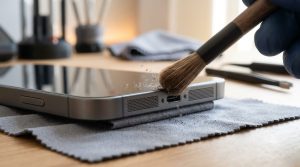
7. Clean Your Phone Speaker Safely
Dust, lint, and other debris can accumulate around a phone’s speaker grille over time. A blocked grille can reduce clarity and make the speaker sound muffled.
To clean it safely:
- Turn off the phone before cleaning if practical.
- Use a soft, dry, clean brush to gently remove loose debris from the speaker grille.
- Work gently rather than pressing debris deeper into the openings.
- Test the speaker again after cleaning.
Avoid using needles, pins, toothpicks, or other sharp objects. Do not pour water, alcohol, or cleaning liquid into the speaker openings.
If your phone has been exposed to moisture, follow the manufacturer’s guidance rather than trying to force liquid out with aggressive cleaning or other risky methods.
8. Check Bluetooth and the Current Audio Output
If your phone’s speaker suddenly seems quiet, check whether your audio is being sent to a Bluetooth device.
Your phone may still be connected to earbuds, a car stereo, wireless headphones, or another speaker. Open Bluetooth settings and disconnect the device temporarily, then play audio through the phone speaker again.
This is particularly useful if headphones work normally but the phone speaker doesn’t seem to produce the expected sound.
9. Restart Your Phone and Check for Software Updates
A temporary software glitch can sometimes affect audio output. Restarting the phone is a simple troubleshooting step that can resolve unexpected sound problems.
After restarting, check whether an Android or manufacturer software update is available. If the problem started after a recent update, check whether another update or manufacturer-recommended fix is available.
How to Fix a Phone Speaker That Suddenly Became Quiet
If your phone speaker suddenly became quiet, don’t immediately assume that the speaker is damaged. Start by checking Bluetooth, volume settings, the speaker grille, and any case or accessory covering the speaker.
Restart the phone and test audio in several different apps. If the problem started after software changes, an update or temporary software issue may be involved.
If the speaker remains unusually quiet across every app after these checks, continue with the hardware troubleshooting section below.
How to Fix Muffled or Distorted Speaker Sound
Muffled phone speaker sound can be caused by debris, an obstruction, or a problem with the speaker itself. Start by checking the speaker grille and removing the phone case before changing advanced settings.
Distorted or crackling sound can also happen when audio is played at very high levels. If you’re using a volume booster or another amplification feature, reduce the amplification and test the sound again.
If distortion continues even at normal volume levels, especially after moisture exposure or physical damage, the speaker may need professional inspection.
Can Volume Booster Apps Make Android Speakers Louder?
Volume booster apps can amplify an audio signal, which may make some sounds appear louder. However, software cannot magically increase the physical capabilities of your phone’s speaker.
Excessive amplification can also introduce clipping, distortion, or crackling. For that reason, built-in Android controls and manufacturer sound features should generally be tried before relying on third-party volume booster apps.
If you do use an amplification app, avoid pushing the sound beyond a level where it becomes distorted or uncomfortable to hear.
How to Increase Phone Volume Without Root
You don’t need root access for the standard solutions in this guide. Adjusting Android volume controls, checking sound settings, using supported audio enhancements, removing obstructions, and cleaning the speaker can all be done on a normal, unrooted phone.
Root access is not necessary simply to troubleshoot ordinary low speaker volume. Modifying system audio files or using unsupported system modifications can introduce additional problems and security risks.
How to Improve Phone Speaker Sound Without Damaging It
The safest approach is to work within the phone’s normal hardware and software limits. Start with the correct volume setting and make sure the speaker isn’t blocked.
For better results:
- Keep the speaker grille clean.
- Use a case with properly positioned speaker openings.
- Use built-in sound enhancement features when available.
- Avoid extreme amplification that creates distortion.
- Don’t insert sharp objects into speaker openings.
- Keep liquids away from the speaker ports.
Remember that making audio louder isn’t always the same as making it better. Clearer voices and less distortion can sometimes make a phone easier to hear without pushing the speaker to its maximum level.
When Low Speaker Volume Could Mean a Hardware Problem
If you’ve tried the software and physical checks above and your phone speaker is still unusually quiet, distorted, or completely silent, there may be a hardware problem.
Hardware damage is more likely if:
- The phone was recently dropped.
- The phone was exposed to water or moisture.
- The speaker produces crackling or severe distortion at normal volume.
- The sound cuts in and out.
- The speaker remains quiet across different apps.
- Headphones work normally while the built-in speaker does not.
In these situations, contacting the phone manufacturer or a qualified repair technician is safer than trying to open the device or modify its hardware yourself.
Common Phone Speaker Volume Problems and Solutions
| Problem | Possible Reason | What to Try |
|---|---|---|
| Media volume is low | Media slider is set separately | Increase the media volume |
| Ringtone volume is low | Ringtone setting or sound mode | Check ringtone volume and sound mode |
| Call volume is low | In-call volume is separate | Increase volume during an active call |
| Speaker suddenly became quiet | Bluetooth, software issue, obstruction, or debris | Check Bluetooth, restart, and inspect the speaker |
| Speaker sounds muffled | Case or debris blocking the grille | Remove the case and clean the grille gently |
| Speaker sounds distorted | Very high volume or audio amplification | Lower volume and disable excessive amplification |
| Bluetooth is connected | Audio may be routed elsewhere | Disconnect Bluetooth and test the phone speaker |
| Only one app has low sound | App-specific volume or audio setting | Check the app’s own sound controls |
| Phone was exposed to moisture | Moisture may affect speaker performance | Follow manufacturer guidance and seek repair if the problem persists |
| Headphones work but speaker doesn’t | Output routing or speaker hardware issue | Check Bluetooth and test the built-in speaker |
Frequently Asked Questions
How do I increase mobile speaker volume?
Check the media volume first, then disconnect Bluetooth, inspect the speaker grille, and review available Android sound enhancement settings. If the speaker is still quiet, restart the phone and check for software updates.
How do I make my phone speaker louder?
Use the correct media volume setting, remove anything covering the speaker, clean the speaker grille carefully, and try built-in equalizer or sound enhancement features if your phone provides them.Increase Mobile Speaker Volume
How can I increase phone volume without an app?
You can use Android’s built-in volume controls and supported sound settings without installing an additional app. Cleaning the speaker and removing obstructions can also improve perceived loudness.
Why is my phone speaker so quiet?
Common causes include a low media volume setting, Bluetooth audio routing, a blocked speaker grille, software problems, or hardware damage.
Can a volume booster app make my phone louder?
A booster app may amplify the audio signal, but it cannot increase the phone speaker’s physical hardware limits. Excessive amplification can also cause distortion and crackling.
How do I clean my phone speaker safely?
Use a soft, dry brush to gently remove loose dust and debris from the speaker grille. Avoid needles, pins, toothpicks, liquids, and aggressive cleaning methods.
Can I increase speaker volume without root?
Yes. Normal Android volume controls, supported sound enhancements, speaker cleaning, and other troubleshooting steps do not require root access.
Why is my phone speaker muffled?
A phone case, dust, lint, debris, or moisture can make the speaker sound muffled. Check the speaker opening and remove the case before trying more advanced troubleshooting.
Why did my phone speaker suddenly become quiet?
Check Bluetooth, volume settings, the speaker grille, and recent software changes. Restart the phone and test sound in multiple apps. If the problem remains, hardware damage may be involved.
When should I repair or replace my speaker?
If the speaker stays very quiet, distorted, or silent after basic troubleshooting, especially after a drop or moisture exposure, have the phone checked by the manufacturer or a qualified repair technician.
Final Verdict: Best Ways to Increase Mobile Speaker Volume
Getting louder and clearer phone audio doesn’t usually require complicated tools. Start by checking the separate Android volume controls, disconnecting Bluetooth, removing anything blocking the speaker, and cleaning the speaker grille carefully.
If your phone supports an equalizer or sound enhancement feature, experiment with those settings to improve clarity. Volume booster apps should be treated cautiously because excessive amplification can introduce distortion and won’t change the speaker’s physical limits.
If your phone remains unusually quiet or distorted after all these steps, particularly after physical or moisture damage, professional inspection is the safest option. With a few simple checks, you can often identify the cause of low speaker volume and get your phone sounding better without unnecessary apps or modifications.