
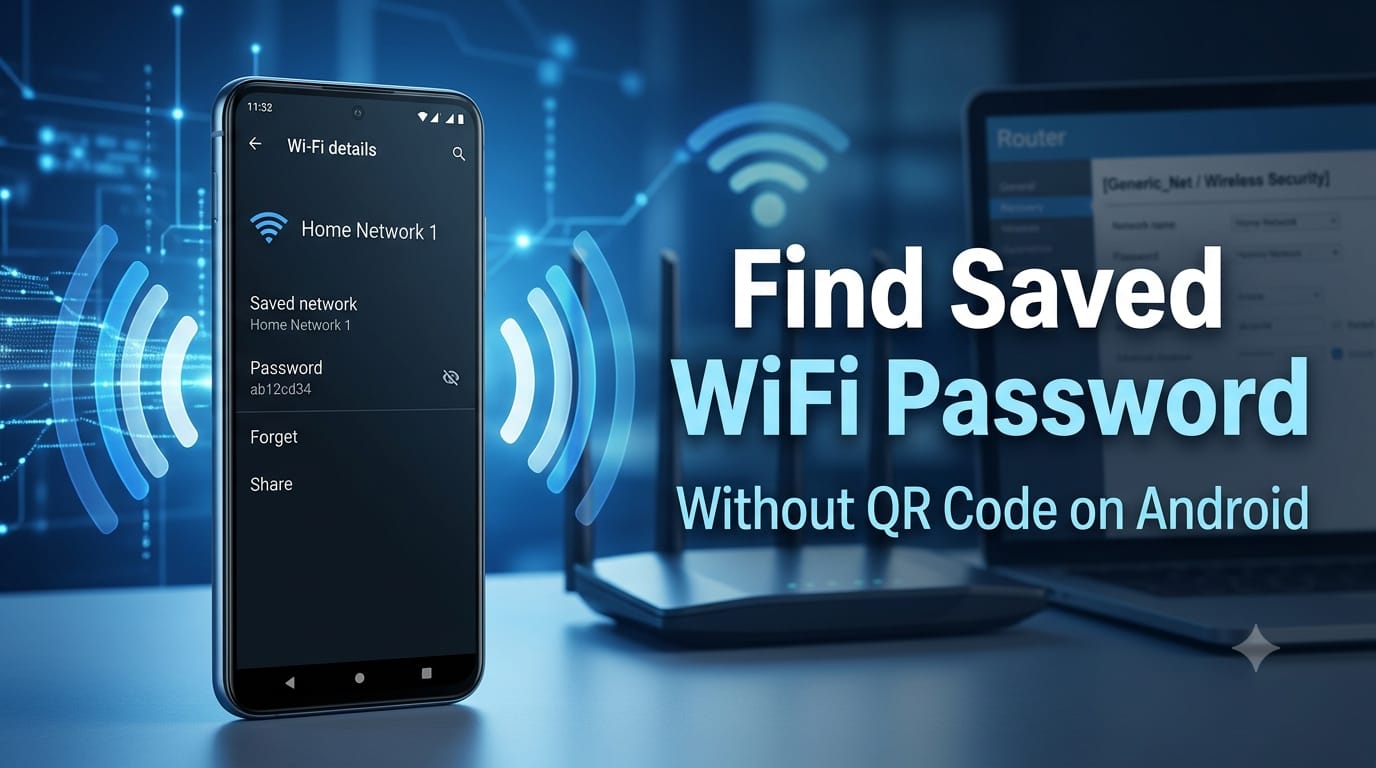
Quick answer: Many modern Android phones let you access saved WiFi network details from the WiFi settings. Depending on your phone and Android version, you may see the password directly or a Share option that displays a QR code. If your phone only provides the QR code, you can recover the current password through the router’s admin page, check the router label if it still uses the default password, or use another authorized device that already has access to the network.
Forgetting a WiFi password happens to everyone. Your phone remembers the network and connects automatically, but when you need to connect another device or share the network, that password can suddenly be difficult to find.
The good news is that Android provides built-in tools for managing saved WiFi networks. However, the exact options vary between Android versions and phone manufacturers. A Google Pixel, Samsung Galaxy, Xiaomi, Redmi, POCO, OnePlus, or Motorola phone may show slightly different menus and password-sharing options.
This guide explains how to find a saved WiFi password on Android, what to do when your phone only shows a QR code, and how to recover the password through your router when a plain-text password option isn’t available.
Why Android Does Not Always Show the WiFi Password Directly
Android’s WiFi sharing feature is designed to make it easy to share a network with another device. On supported phones, you can open the details of a connected WiFi network and use the Share option to display a QR code.
Depending on the phone and software version, the same screen may also provide the password as text. Some devices require you to confirm your identity with a fingerprint, face unlock, PIN, or another screen-lock method before showing network details.
Other phones may only display a QR code. If your device doesn’t provide a plain-text password option, there may not be a supported setting that can reveal it directly.
It helps to understand the difference between these three options:
- Viewing the password as text: The actual WiFi password is displayed on screen when the device supports this feature.
- Viewing a QR code: The phone displays a scannable code containing the network information.
- Sharing the network: Another compatible device can scan the QR code and connect without manually typing the password.
If your phone only provides the QR-code option, don’t worry. The router recovery method later in this guide provides another legitimate way to find the current WiFi password if you have administrator access.
How to Find a Saved WiFi Password on Android
The exact steps depend on your Android phone, but the general process is similar across many modern devices.
- Open Settings on your Android phone.
- Open Network & internet, Connections, WiFi, or a similarly named option.
- Open the WiFi network you are connected to or the saved network you want to check.
- Look for an option such as Share, WiFi sharing, or a password field.
- Authenticate with your fingerprint, PIN, password, or other security method if requested.
- If your phone provides a plain-text password option, use it to view the password.
- If your phone only displays a QR code, use one of the alternative recovery methods explained below.
Google’s current Android guidance uses Settings > Network & internet > Internet as the general path on supported devices, but the exact menu names and available options can vary by manufacturer and software version.
How to Find a WiFi Password Without Using the QR Code
If you specifically want to see the actual WiFi password rather than scan a QR code, first check whether your phone provides a password field or an eye icon on the WiFi sharing screen.
If the password is available as text, authenticate when prompted and view the characters on screen.
If there is no password field and your phone only provides a QR code, don’t rely on secret codes or questionable apps claiming to bypass Android’s restrictions. Instead, use an authorized alternative:
- Check another authorized device: A laptop, tablet, or phone that already has access to the network may provide a way to view its saved WiFi credentials.
- Check the router: If you own or manage the router, its administration page may show the current wireless password.
- Check the router label: If the default WiFi password has never been changed, it may be printed on the router’s label.
- Contact the network administrator: For a network you don’t manage, asking the administrator is the appropriate option.
There is no universal Android dialer code or secret menu that can reveal a WiFi password on every phone. Be cautious with apps or websites that promise to unlock WiFi passwords instantly.
Find a Saved WiFi Password on Google Pixel and Stock Android
On Google Pixel phones and devices using a stock or near-stock Android interface, open Settings and go to Network & internet > Internet.
Select the WiFi network you want to manage and look for Share or a similar WiFi-sharing option. Your phone may require you to confirm your screen lock before showing the network information.
Depending on the Android version and software build, you may see the password as text, a QR code, or both. If your particular phone only provides the QR code, use the router method described later in this article to recover the password in plain text.
Find a Saved WiFi Password on Samsung Galaxy
Samsung uses its own One UI interface, so the WiFi settings can look different from stock Android.
On many Samsung Galaxy phones, start with:
- Open Settings.
- Tap Connections.
- Tap WiFi.
- Select the connected network or open its settings using the gear icon.
- Look for a Share or WiFi-sharing option.
Depending on your One UI version and Galaxy model, Samsung may provide a QR code and may offer additional password information. If your phone doesn’t display the password as text, don’t assume something is wrong. Use the router method or another authorized device instead.
Find a Saved WiFi Password on Xiaomi, Redmi and POCO
Xiaomi, Redmi, and POCO phones can use different WiFi menu layouts depending on whether the device is running MIUI, HyperOS, or another software version.
Generally, open Settings, find the WiFi section, and select the saved or connected network. Look for a sharing or QR-code option.
Because the available options can differ between models and software versions, don’t rely on one exact menu path for every Xiaomi-family device. If your phone doesn’t provide a plain-text password option, the router method remains a reliable alternative when you have administrator access.
Find a Saved WiFi Password on OnePlus, Motorola and Other Android Phones
OnePlus, Motorola, and other Android manufacturers generally use a similar process: open Settings, find WiFi or network settings, select the saved or connected network, and look for network details or a sharing option.
The exact wording can vary. Look for options such as Share, WiFi sharing, a QR-code icon, or a password field.
If you cannot find a plain-text password option, don’t install a random password-viewer app just to bypass the limitation. Check the router or another authorized device instead.
What to Do If Android Only Shows a QR Code
If Android only shows a QR code when you select the WiFi sharing option, your particular phone or software version may not provide a separate plain-text password display.
In that situation, you have several legitimate choices. You can scan the QR code with another compatible device to connect it to the same network, check whether another authorized device can reveal its saved password, or access the router’s administration page if you manage the network.
The important point is that a QR code isn’t necessarily a problem. It is simply another way Android can share the saved WiFi credentials without requiring you to type the password manually.
Use the Router to Recover Your WiFi Password

If your Android phone doesn’t show the password directly, the router can be the most useful alternative. This method requires administrator access to the router.
- Connect a phone, computer, or another authorized device to the router’s network.
- Open a web browser.
- Enter the router’s local gateway address.
- Sign in using the router’s administrator credentials.
- Open a section such as Wireless, WiFi, Wireless Security, or Security.
- Look for a field named Password, Passphrase, WiFi Key, or Pre-Shared Key.
The router’s gateway address varies between manufacturers and network configurations, so don’t assume that one fixed address will work on every router. You can check your device’s network details or the router’s documentation to find the correct address.
Also remember that the router administrator password and the WiFi password are not necessarily the same thing. The administrator credentials are used to access the router’s settings, while the WiFi password is used to connect devices to the wireless network.
If you changed the WiFi password recently, the router’s current configuration is especially useful because it reflects the password currently configured for the network.
Can You Find a Saved WiFi Password Without an App?
Yes. Modern Android phones provide built-in WiFi management and sharing features, so a third-party app is usually unnecessary.
If your phone provides a password field, you can use the built-in settings. If it only provides a QR code, you can use the QR code for sharing or use an authorized alternative such as the router’s administration page.
Avoid installing apps that request unnecessary permissions or claim they can bypass Android security to reveal passwords.
Can You Find a Saved WiFi Password Without Root?
Yes. You do not normally need root access to use Android’s built-in WiFi sharing features or to recover a password through a router you administer.
Rooting your phone solely to recover a WiFi password is unnecessary for the standard methods described in this guide and can introduce additional security and software risks.
What If the WiFi Network Is Saved but You Are Not Currently Connected?
Saved-network behavior varies between Android versions and manufacturers. Some phones let you manage previously saved networks even when you’re not connected, while other devices provide fewer options for networks that are currently out of range.
Open your phone’s WiFi settings and check whether the network appears under saved or previously used networks. If the password-sharing option isn’t available for that network, reconnecting to it may provide additional options.Find Saved WiFi Password Without QR Code
If you cannot reconnect or the password isn’t available through Android, the router method is the better option when you have administrator access.
Why Can’t I See My Saved WiFi Password?
There are several possible reasons why the password isn’t visible.
- Your Android version may not support plain-text WiFi password viewing.
- Your phone manufacturer may only provide QR-code sharing.
- The network may no longer be available or may have been removed.
- The password-sharing screen may require screen-lock authentication.
- The router password may have been changed since the network was originally saved.
- Your phone’s software may use a different menu or feature name.
If Android doesn’t provide a text password option, that doesn’t necessarily mean the saved network information is damaged. It may simply be a limitation of your phone’s software.
Common WiFi Password Problems and Solutions
| Problem | Possible Reason | Solution |
|---|---|---|
| Share option is missing | Android version or manufacturer limitation | Check available WiFi settings or use the router method |
| Password is not visible | Phone only provides QR-code sharing | Check the router or another authorized device |
| Only a QR code appears | Plain-text password viewing isn’t available on that software version | Use the QR code to connect another device or recover the password from the router |
| Saved network is not listed | Network may have been forgotten or removed | Reconnect to the network or check the router |
| Phone is no longer connected | Network is out of range or unavailable | Reconnect when possible or use the router method |
| WiFi network was renamed | Router settings were changed | Check the router’s current wireless configuration |
| WiFi password was changed | Saved credentials are outdated | Use the router’s current WiFi password and reconnect devices |
| Samsung menu looks different | One UI version or model difference | Open Connections > WiFi and check the network options |
| Android version is older | Some newer WiFi sharing features may not be available | Use the router or another authorized device |
| Router login page won’t open | Incorrect gateway address or connection problem | Check the device’s network details and confirm you’re connected to the router |
| Router administrator password is unknown | Admin credentials were changed or forgotten | Check the router documentation or manufacturer instructions for account recovery or reset options |
WiFi Password Security and Privacy
This guide is intended for recovering WiFi credentials for networks you own or are authorized to access, such as your home network or a network you manage.
Do not use WiFi password recovery techniques to bypass network security, guess or crack passwords, or access a network without permission. If you don’t manage a network, the appropriate approach is to ask its administrator for access.
Also avoid sharing your WiFi password publicly. Anyone who has the credentials may be able to connect to the network, depending on its configuration.
Frequently Asked Questions
Can I find a saved WiFi password without a QR code?
On some Android phones, yes. Check the WiFi network’s sharing screen for a password field or eye icon. If your phone only provides a QR code, use an authorized alternative such as the router’s administration page or another device that already has access. Find Saved WiFi Password Without QR Code
How do I see saved WiFi passwords on Android?
Open your Android WiFi settings, select the saved or connected network, and look for a Share, WiFi sharing, or password option. The exact menu and available features depend on your Android version and phone manufacturer.
Can I find a WiFi password without an app?
Yes. Android’s built-in WiFi features can provide network-sharing options without a third-party app. If the password isn’t shown as text, you can check the router if you have administrator access.
Can I find a WiFi password without root?
Yes. Root access is not normally required for Android’s built-in WiFi sharing features or for checking the WiFi configuration on a router you manage.Find Saved WiFi Password Without QR Code
Why does Android only show a QR code?
Some Android versions and manufacturer software provide QR-code sharing without a separate plain-text password option. In that case, you can use the QR code to connect another device or recover the password through an authorized router.
How do I find the WiFi password on Samsung?
On many Samsung Galaxy phones, open Settings > Connections > WiFi, select the network, and look for a Share or WiFi-sharing option. The exact choices depend on your Galaxy model and One UI version.
How do I find the WiFi password on Google Pixel?
On supported Pixel software, open Settings > Network & internet > Internet, select the WiFi network, and choose Share. Depending on the software version, you may see a password, a QR code, or both. Find Saved WiFi Password Without QR Code
Can I recover a WiFi password from my router?
Yes, if you have administrator access. Open the router’s administration page and check its Wireless, WiFi, or Security settings for the current password or passphrase.
What if the WiFi password was changed?
If the router password was changed, an old saved password may no longer work. Check the router’s current wireless settings or ask the network administrator for the updated password.
Why can’t I see an old saved WiFi password?
The feature may not be supported by your Android version or manufacturer interface, or the network may have been removed from the phone. If the password isn’t available on the phone, check the router or another authorized device.
Final Verdict: Finding a Saved WiFi Password on Android
Finding a saved WiFi password without a QR code depends largely on your Android phone, software version, and manufacturer. Some devices provide the password as text, while others focus on QR-code sharing.Find Saved WiFi Password Without QR Code.
Start by opening your WiFi settings and checking the saved network’s available options. If your phone doesn’t provide a plain-text password, don’t rely on questionable apps, secret codes, or unsupported workarounds.
For a network you own or manage, the router’s administration page is a useful backup because it can show the current wireless configuration. You can also check another authorized device that already has access to the network.
With these methods, you can recover or share your WiFi credentials without needing unnecessary apps or root access while keeping the process safe and legitimate.