
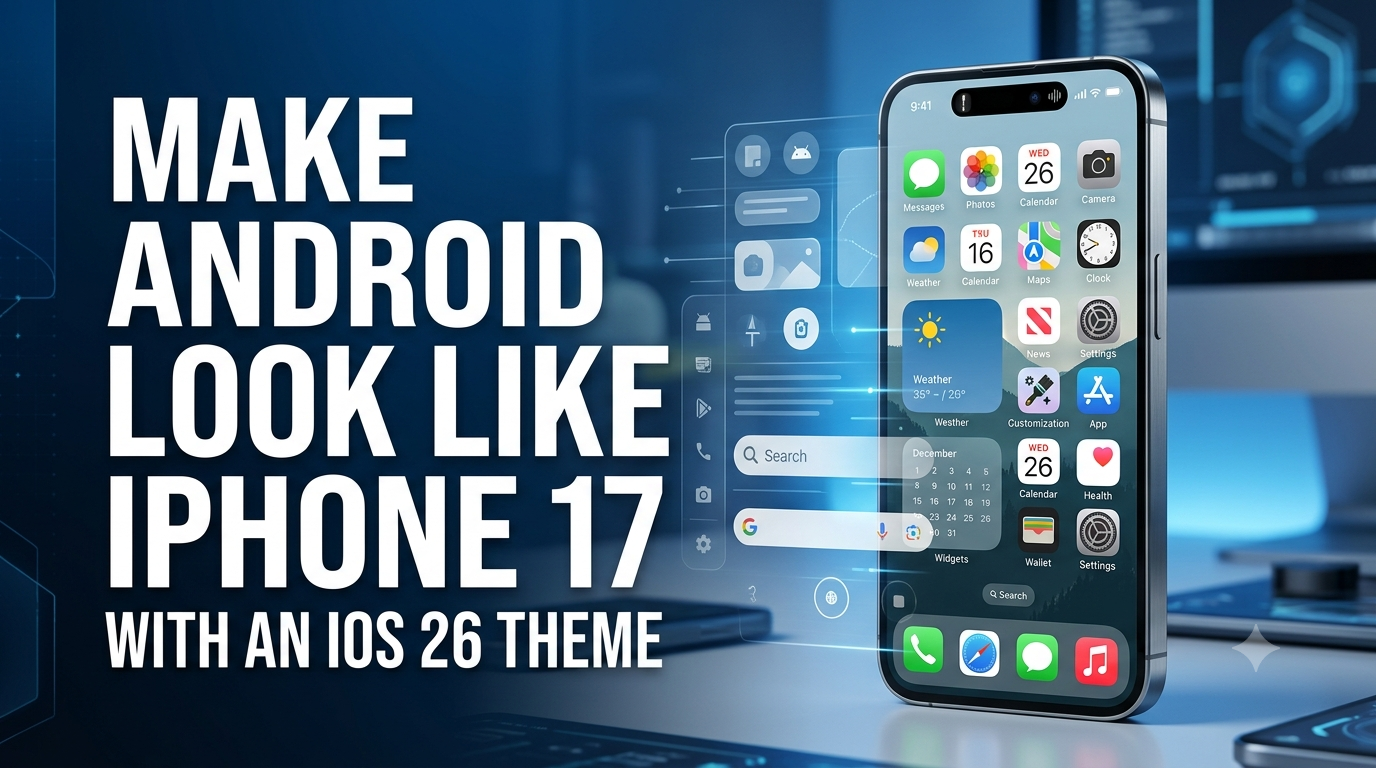
You can make an Android phone look similar to an iPhone 17 by combining an iOS-style launcher, iPhone-inspired icons, an iOS 26-style wallpaper, widgets, a customized lock screen, and an optional Control Center app. These tools change the appearance and selected interface elements, but they do not turn Android into iOS.
Can you really make an Android phone look like an iPhone 17? Yes. With the right combination of customization tools, you can recreate many of the visual elements associated with the iPhone 17 and Apple’s iOS 26 design.
The process can change your home screen, app icons, wallpaper, widgets, lock screen, navigation style, notifications, and some quick settings. However, Android remains Android underneath. Apple’s operating system, App Store, iMessage, FaceTime, and hardware-specific features cannot simply be installed through a launcher or theme.
What You Need to Create an iPhone 17-Style Android
Before starting, you will generally need some combination of the following:
- An iOS-style Android launcher
- An iPhone-inspired icon pack
- An iPhone 17-style or iOS-inspired wallpaper
- An iOS-style widget app
- A lock screen customization tool, if your launcher does not provide one
- A Control Center-style app, if you want to recreate that part of the interface
- A Dynamic Island-style app, if your phone does not already have a similar feature
Availability and compatibility vary between Android phones, Android versions, and individual apps. Before installing a customization app, check its Play Store listing, recent reviews, update history, and requested permissions.
How to Make Android Look Like iPhone: The Overall Process
Creating an iPhone-style Android setup works best when you customize the phone in layers. Start with the launcher, then change the icons and wallpaper, followed by widgets, the lock screen, Control Center, and optional notification or Dynamic Island-style features.
This approach also makes it easier to undo individual changes if something does not work properly on your phone.
Install an iPhone-Style iOS 26 Launcher
The launcher is the foundation of an iPhone-style Android setup. A launcher controls much of what you see on the home screen, including app placement, folders, icons, dock behavior, and some gestures.
To get started:
- Install a reputable iOS-style launcher from the Google Play Store.
- Open the launcher and complete its setup process.
- If Android asks which home app you want to use, select the new launcher.
- Customize the home-screen grid, dock, folders, and app layout.
Android’s home-screen settings and available options can vary by manufacturer and software version, so the exact menu names may be different on Samsung, Xiaomi, OnePlus, Motorola, Google Pixel, and other devices.
Change Android App Icons to an iPhone-Style Design
Changing the icons can make a major difference to the overall appearance. Many iOS-style launchers include their own icon designs, while others support separate icon packs.
Look for an icon pack that uses a consistent iPhone-inspired design rather than mixing several unrelated icon styles.
After installing an icon pack:
- Open your launcher settings.
- Look for the icon, theme, or appearance section.
- Select the available iOS-style icon pack.
- Adjust icon size and spacing if the launcher provides those options.
The exact procedure depends on the launcher. Some launchers support icon packs directly, while others provide their own built-in icon themes.
Use an iPhone 17-Style Wallpaper
Wallpaper is another important part of the visual transformation. Choose a high-resolution wallpaper that matches your phone’s screen ratio so that it does not look stretched or heavily cropped.
You can use an iPhone-inspired wallpaper or an iOS 26-style design. Apply it to the home screen, lock screen, or both, depending on the customization options available on your device.
For the closest visual match, choose a simple wallpaper that works well with clean icons and widgets instead of using a busy background.
Add iOS-Style Widgets to Android
Widgets can help recreate the clean, minimal appearance associated with Apple’s interface. Weather, calendar, clock, battery, and photo widgets are common choices.
To add a widget:
- Touch and hold an empty area of the Android home screen.
- Tap Widgets if the option is available.
- Choose a compatible widget.
- Place and resize it on the home screen.
- Adjust its appearance if the widget provides customization options.
Widget availability and customization controls depend on the Android launcher and widget app you use.
Make the Android Lock Screen Look Like iPhone
The iPhone-style lock screen is another noticeable part of the overall design. You can recreate some of its visual elements on Android by using your phone’s built-in lock-screen customization options or a compatible customization app.
Depending on your Android phone, you may be able to change the clock style, wallpaper, shortcuts, notification appearance, and widgets directly from the system settings.
If your phone does not provide enough customization options, some third-party apps can create an iPhone-inspired lock-screen appearance. Be careful with lock-screen apps because they may require permissions that can affect notifications or display content over other apps.
Add an iOS-Style Control Center on Android
Control Center is one of the recognizable elements of Apple’s interface. Android has its own Quick Settings panel, but you can use a third-party customization app to create an iOS-inspired version.
A typical setup involves:
- Install a reputable Control Center-style app.
- Open the app and review the permissions it requests.
- Enable the required permissions only if you are comfortable with them.
- Customize the available shortcuts and appearance.
- Set the activation area or gesture if the app supports it.
Keep in mind that a third-party Control Center is only an Android overlay or interface replacement. It is not Apple’s actual Control Center.
Add a Dynamic Island-Style Feature on Android
Some Android phones and apps can recreate an iPhone-style Dynamic Island appearance. These tools generally use a small overlay near the front camera area to display selected notifications or ongoing activities.
Depending on the app, you may be able to display information such as music playback, charging status, timers, or notifications.
To use one, install a reputable Dynamic Island-style application and carefully review the permissions it requests. Some apps may require notification access or permission to display over other applications.
The result is an Android-based visual recreation. It does not provide Apple’s underlying hardware or system-level Dynamic Island implementation.
Make Android Notifications Look More Like iPhone
Notifications can also affect how convincing an iPhone-style setup looks. Some Android launchers and customization tools can change notification presentation, while other apps can provide an iOS-inspired notification overlay.
However, notification customization is optional. Android’s own notification system is generally more reliable because it is integrated directly into the operating system.
If you use a third-party notification app, check its notification access permission carefully because notification access can allow an application to read information contained in notifications.
Add iPhone-Style Gestures and Navigation
Gesture navigation can make the Android interface feel cleaner and closer to the navigation style associated with modern iPhones.
Many Android phones already support gesture navigation without installing another application. Depending on your device, look under settings related to Navigation, System Navigation, or Gestures.
You can also configure supported launcher gestures for actions such as opening the home screen, recent apps, or notifications. Available gestures vary between launchers and Android devices.
How Do You Make Samsung Look Like iPhone?
Samsung Galaxy phones can also be customized with an iPhone-inspired appearance. The general process is similar: choose a compatible launcher, apply an appropriate icon style, change the wallpaper, add widgets, and customize other supported interface elements.
Samsung’s One UI settings and launcher behavior are different from stock Android, so some options may appear under different menus.
If you want to keep Samsung’s original features while changing only the appearance, consider making smaller changes instead of replacing every part of the interface with third-party apps.
iPhone 17 Theme for Android: What Actually Changes?
An iPhone 17 theme for Android mainly changes the visual and interactive layer of your phone. Depending on the tools you use, this can include:
- Home-screen layout
- App icons
- Wallpaper
- Widgets
- Lock-screen appearance
- Quick settings or Control Center appearance
- Notification presentation
- Some gestures and navigation behavior
These changes do not replace Android itself. Your phone continues to use Android, its existing hardware, Android applications, and the manufacturer’s software underneath the customization.
iOS 26 Launcher vs. iPhone-Style Theme: Which Should You Choose?
An iOS-style launcher can change a large part of the home-screen experience in one step. It is useful if you want the overall layout, icons, dock, and app organization to resemble an iPhone.
A lighter iPhone-style theme can be a better approach if you only want to change the wallpaper and icons while keeping your existing Android launcher.
| Option | What It Changes | Best For |
|---|---|---|
| iOS-style launcher | Home screen, icons, layout and launcher behavior | Complete visual makeover |
| Icon pack | App icons | Quick visual change |
| Wallpaper | Home and lock screen background | Simple customization |
| Widget app | Clock, weather, calendar and other widgets | iOS-inspired home screen |
| Control Center app | Quick-access panel appearance | More iPhone-like interface |
What Android Cannot Copy From iPhone
Even with extensive customization, an Android phone cannot simply become an iPhone. Some Apple features depend on Apple’s operating system, services, hardware, or ecosystem.
For example, an Android launcher cannot turn Android into iOS or provide Apple’s complete ecosystem. Features such as iMessage, Apple’s App Store, and Apple’s hardware-level integration remain specific to Apple’s platforms and services.
Third-party apps may imitate the appearance of certain features, but an imitation should not be confused with the original Apple technology.
Is It Safe to Use iOS Launchers and Themes on Android?
Customization apps can be useful, but you should treat them like any other third-party software.
- Prefer reputable apps from the Google Play Store.
- Check recent reviews before installing an app.
- Look at the permissions requested by the application.
- Avoid cracked or modified APK files from unknown sources.
- Remove apps you no longer use.
- Be especially careful with apps requesting notification access, accessibility access, or permission to display over other apps.
A launcher normally needs access related to your home-screen experience, but additional apps may request broader permissions depending on what they do. Only grant permissions that make sense for the feature you want to use.
How to Remove the iPhone Theme and Return to Normal Android
If you decide that you no longer want the iPhone-style appearance, you can normally reverse the changes by switching back to your original launcher and removing the customization apps you installed.
On many Android phones, you can find the default launcher under settings related to Default Apps or Home App. The exact menu name depends on the manufacturer and Android version.
After switching back, you can:
- Select your original Android or manufacturer launcher.
- Uninstall the third-party launcher if you no longer need it.
- Remove unnecessary icon, Control Center, notification, or Dynamic Island-style apps.
- Restore your preferred wallpaper and widgets.
- Check your navigation settings and restore your preferred navigation method.
Frequently Asked Questions
Can I make Android look like iPhone 17?
Yes. You can recreate many visual elements of an iPhone 17 using an iOS-style launcher, icons, wallpaper, widgets, lock-screen customization, and other compatible Android tools. The result is still Android rather than actual iOS.
Can I make Android look like iOS 26?
You can create an iOS 26-inspired appearance using compatible launchers, icon packs, wallpapers, widgets, and other customization tools. The exact result depends on your Android phone and the apps you choose.
Can I use an iPhone 17 launcher on Android?
You can use an Android launcher designed to imitate an iPhone-style interface. These launchers recreate the appearance of Apple’s interface but do not install Apple’s iOS operating system.
Can I add Dynamic Island to Android?
Some Android applications can create a Dynamic Island-style overlay. These apps can imitate the appearance and display selected information, but they do not reproduce Apple’s complete hardware and software implementation.
Can I make Samsung look like an iPhone?
Yes. Samsung Galaxy phones can be customized with an iPhone-inspired launcher, icons, wallpaper, widgets, and other compatible customization tools. The available options depend on the Galaxy model and One UI version.
Can I make Android look like iPhone without root?
Many appearance-based customizations can be performed without rooting Android. Launchers, wallpapers, icon packs, widgets, and some other customization tools can work through normal Android installation and permissions. However, compatibility varies by device and application.
Will an iPhone theme make Android run iOS?
No. An iPhone theme or launcher only changes the appearance and selected interface behavior. The underlying operating system remains Android.
Will an iOS launcher slow down my Android phone?
It can happen, particularly with heavily customized launchers or multiple overlay applications. If you notice battery drain, lag, crashes, or excessive background activity, remove unnecessary customization apps and return to a lighter setup.
Can I remove the iPhone theme later?
Yes. In most cases, you can switch back to your original launcher and uninstall the customization applications. Your exact steps depend on your Android manufacturer and software version.
Final Thoughts
Making Android look like an iPhone 17 is possible through a combination of Android customization tools. The biggest visual changes usually come from the launcher, app icons, wallpaper, widgets, and lock screen. Optional tools can then recreate an iOS-inspired Control Center, notifications, or Dynamic Island-style interface.
The important thing is to treat these tools as customization rather than an actual conversion from Android to iOS. Start with the launcher and icons, then add the other elements gradually. This gives you more control over the final appearance and makes it easier to remove anything that does not work well on your phone.
With the right combination of compatible tools, you can create a clean iPhone 17-style Android setup while keeping the flexibility and applications of Android.